The Playbook section is the library. It shows all validated techniques of your organization in four views. Click Playbook in the top bar to open the map. The map is the default view. Use the menu in the breadcrumb to change between the views: Map, All, Retired, and Tags.
The map
The map draws the full live playbook as a network. Each technique is a node. A node is near the techniques that have the same tags. The nodes make clusters, and each cluster is an area of practice.
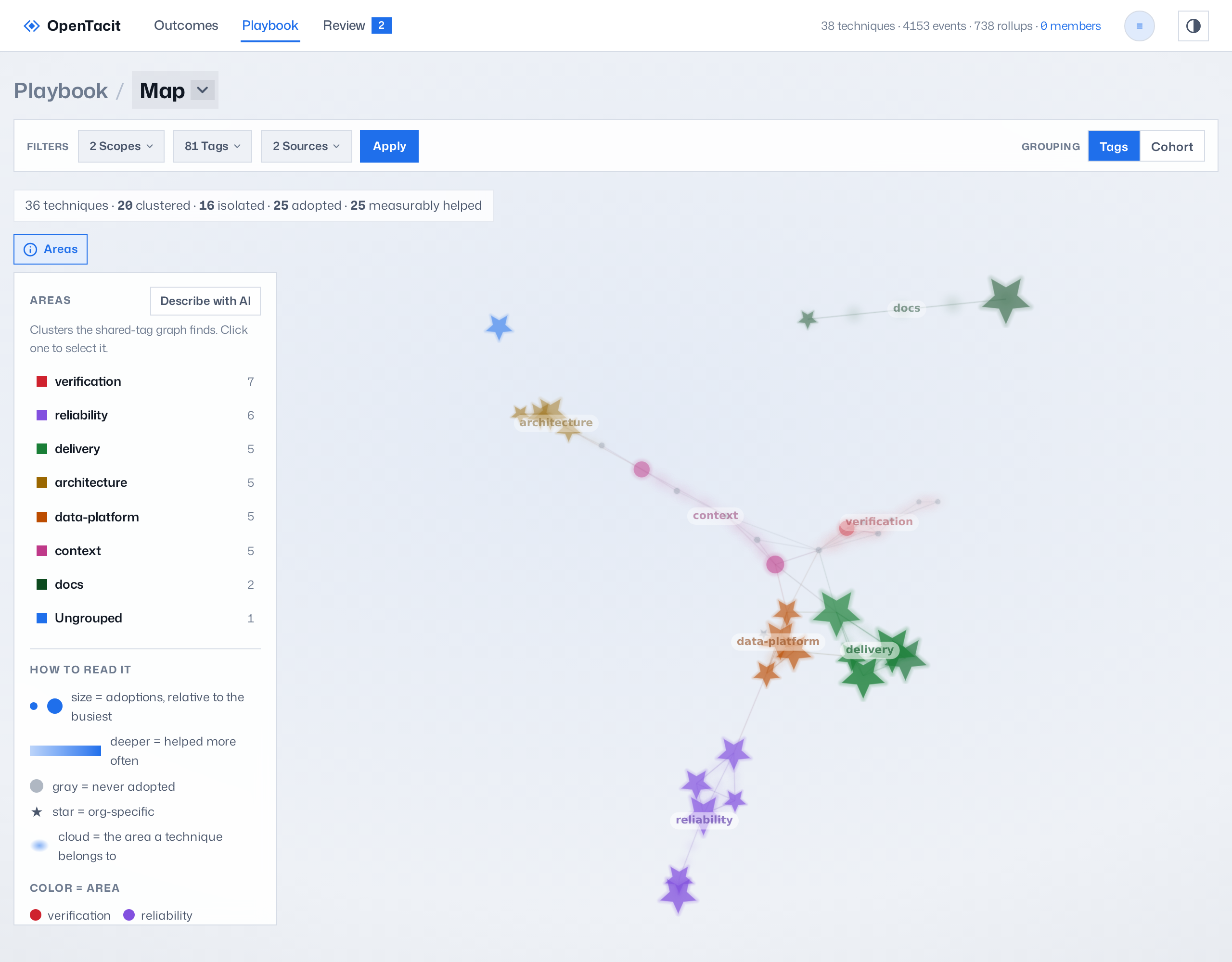
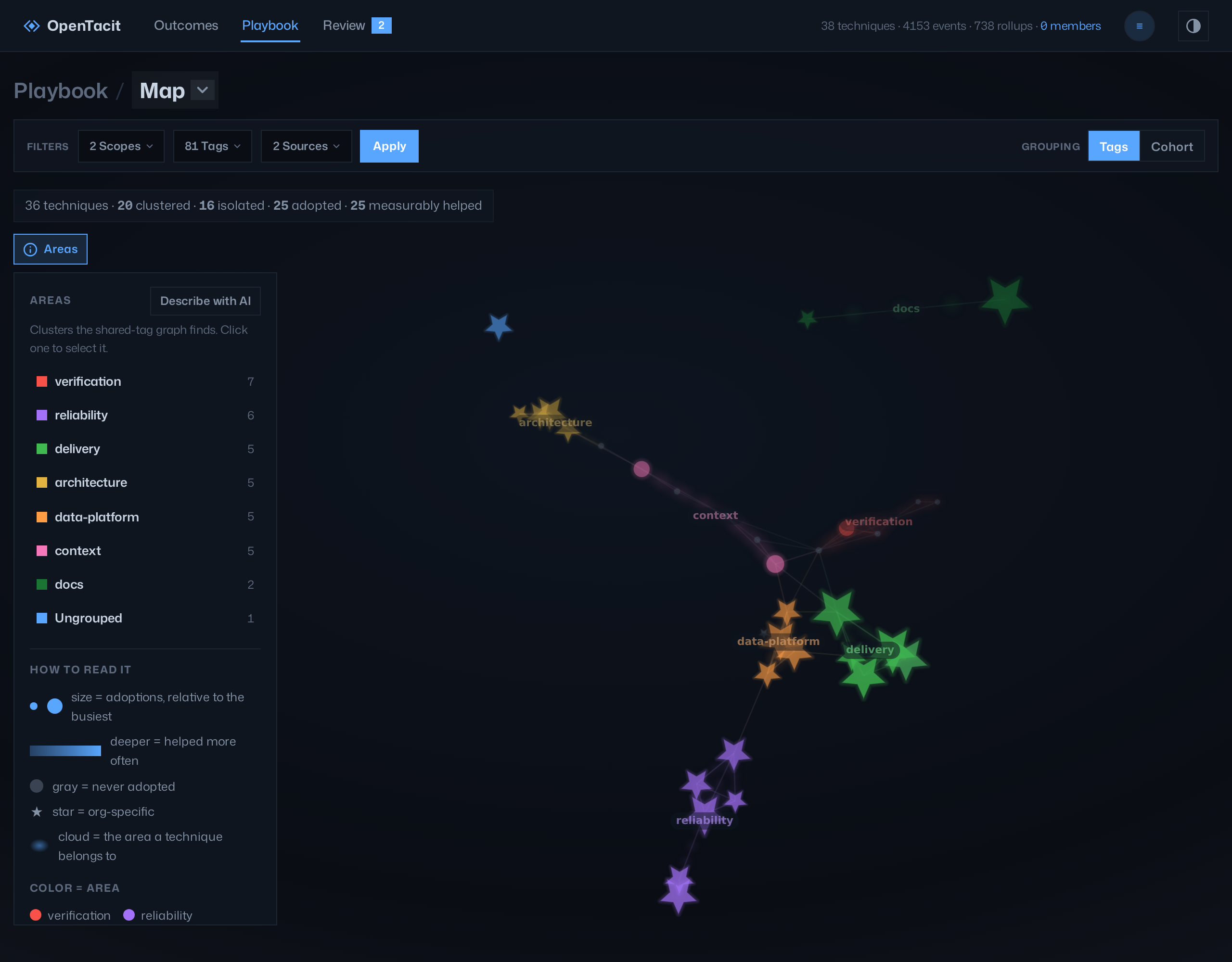
- Size shows the adoptions.
- Color depth shows the helped rate.
- Gray shows a technique with no adoptions.
- ★ identifies org-specific techniques. A star, not a circle, stays clear at the smallest node sizes.
- Click a node to see its details in place. Drag to turn the field. Scroll to zoom.
- The Grouping control changes the arrangement between Tags and Cohort. Your selection stays.
- The Areas button opens an overlay. The overlay lists the clusters that the map found. It also explains how to read the field. Administrators can click Describe with AI. Then the model gives a name and a description to each area. This is useful when the current labels do not describe the library sufficiently.
The list
The All view shows the same library as a table with the name, source, and tags. The table has the same areas of practice as groups, and you can collapse each group. Each group header shows the totals of the group: technique count, adoptions, and helped rate. Org-specific rows have an org badge.
- Filter by scope, tags, or source.
- Click a tag to see its performance.
- Click a row to open the technique.
A technique's page
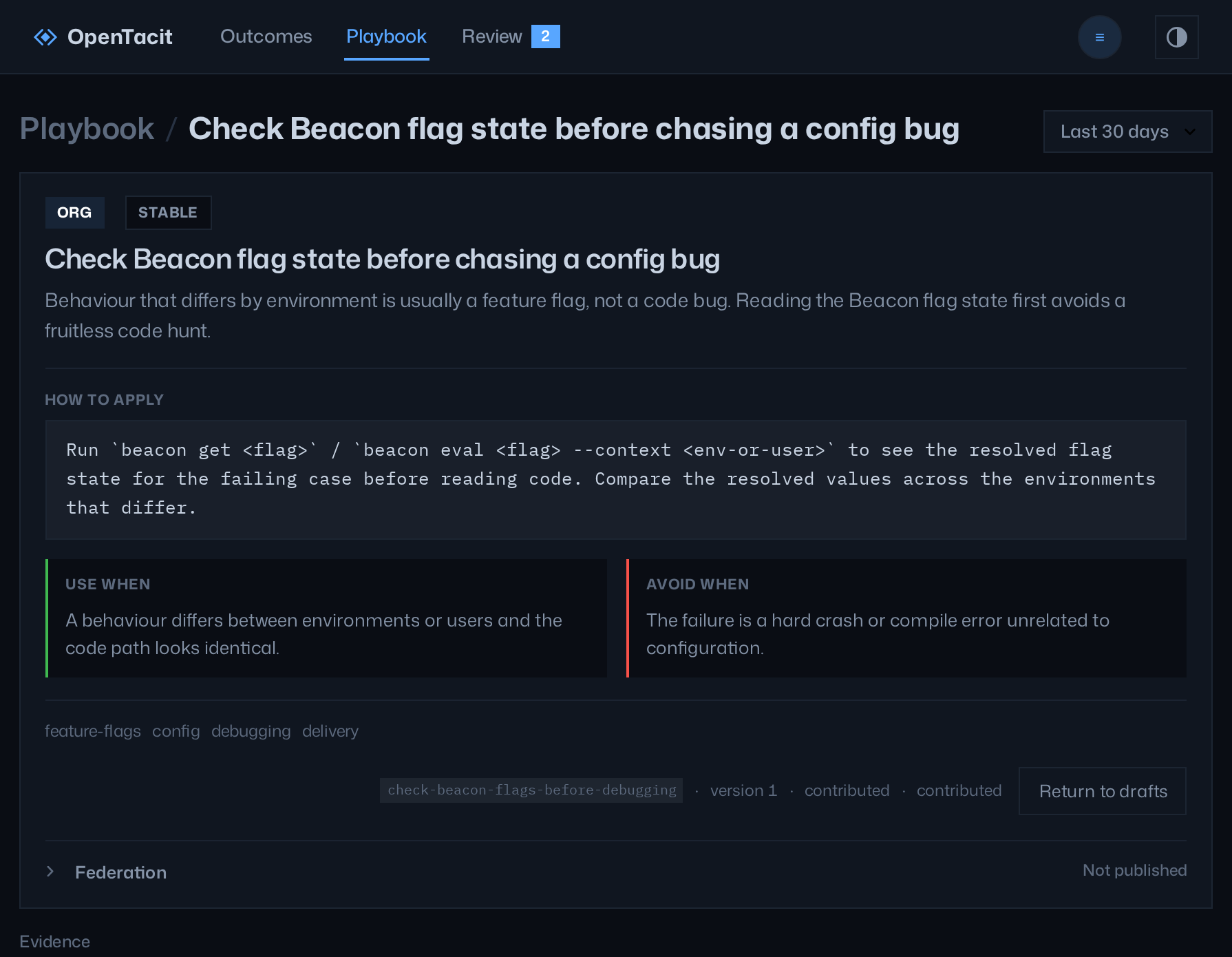
The page of a technique shows all its contents: the description, the recipe, when the technique applies, when it does not apply, the tags, the provenance, and the version. The page also shows the measured outcomes, with a link to the full outcomes record. If the technique has earlier versions, its history page shows each version, with the newest first.
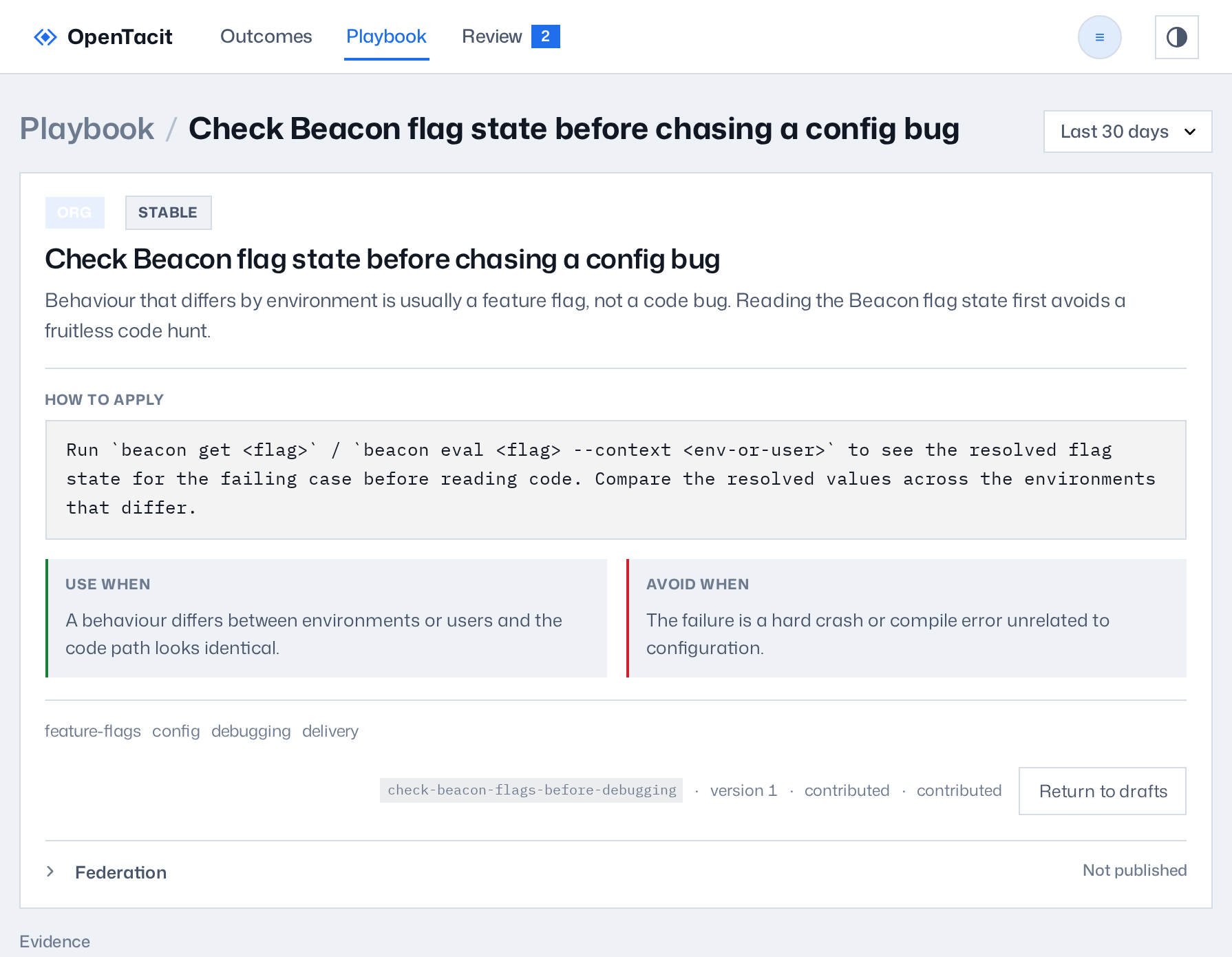
Administrators can do these actions from this page:
- Return to drafts removes a live technique from service and puts it back in the review queue. Use this action when a technique needs rework.
- The federation panel publishes the technique to one or more named channels. The panel can also unpublish the technique. See Share techniques between organizations.
Retire and restore
Retrieval does not send retired techniques to members. But the registry keeps the retired techniques. The Retired view lists them. Each row has a Restore action. This action puts the technique back in service.
Keep the tag vocabulary healthy
Tags control the clusters of the map, the filters, and a part of retrieval. A vocabulary that is not consistent ("db", "database", "postgres") divides the library. The Tags view is the page for tag maintenance:
- Examine the table. It shows each tag, the number of techniques that have the tag, and a flag on the tags that only one technique uses.
- To merge a tag or to rename it, type the target name in its row. The field completes the name from the live vocabulary. Then click Apply.
- To remove a tag from all techniques, click Delete. Then confirm.
- To get help, click Suggest merges. The model reads the full vocabulary and proposes merges. You apply or discard each proposal, one at a time. The system never applies a proposal automatically.